

Getting Started
Create IdenfyUISettingsV2
Create an instance of theIdenfyUISettingsV2 class:
Update IdenfySettingsV2
Which Approach Should You Use?
Customization Options
Customization with IdenfyUISettingsV2
Camera OnBoarding View
Joined Country and Document Selection
Since SDK version 9.0.0, this setting is enabled by default and the country and document selection views are joined into one.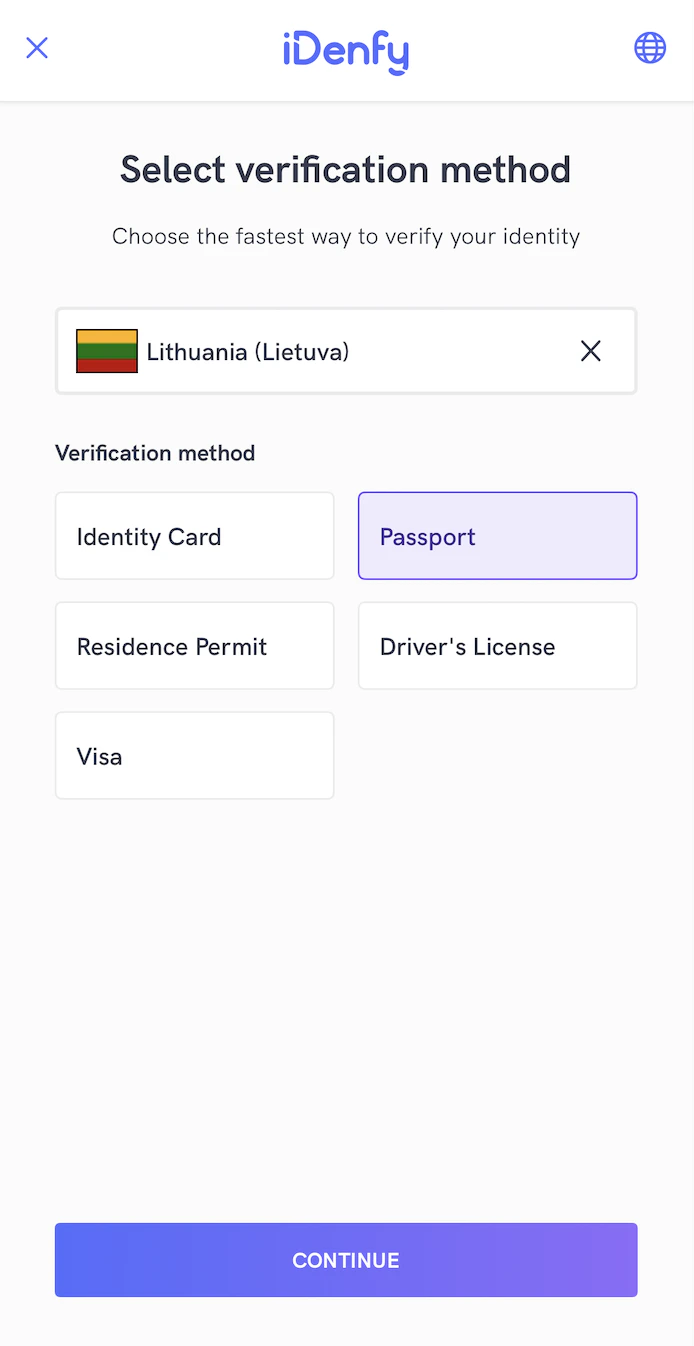
Language Selection
Bottom Sheet Dialogs
Since SDK version 9.1.0, this setting is enabled by default, it present dialogs as bottom sheets instead of centered alerts for iDenfy custom dialogsDocument Camera Rectangle Visibility
Since some documents are non-regular size, you can hide the camera rectangle. This way the whole screen is dedicated to document capturing. The rectangle can be hidden for all document types:iDenfy Toolbar
You can hide the iDenfy toolbar:Customization by Changing Views from idenfyviews Module
All UI elements are located in the separate module idenfyviews. Classes are marked as public, so you can override them.
1. Including idenfyviews:
IdenfyDocumentSelectionViewUISettingsV2 settings:
Find UI Settings classes for all views in the repository.
Applying SDK-Wide Color Changes
If color and asset changes are the only requirement, they can be easily customized by changing the main colors.
Example:
nil:
Applying Custom Fonts
Custom fonts can be passed to the SDK (make sure the font files exist in your bundle):Customization by Supplying Your Own Implementations of UIViews Protocol
For more advanced customization (fonts, constraints, layout structure, etc.), you can override the SDK layouts by providing your own implementations. All views used in the SDK are located in theidenfyviews module and expose public protocols.
1. Create an instance of IdenfyViewsV2
Use IdenfyViewsBuilderV2 to create an instance of IdenfyViewsV2 with your custom views that conform to the protocols provided by the SDK:
Find all iDenfy viewables and their implementations in the sample application.
Customization by Providing a CustomWaitingViewController
To fully customize your verification results waiting view, you can pass your own view controller. You can then control when and after which additional steps you want to retry the verification session:
initializeWithCustomWaitingViewController() method of IdenfyController:
onIdenfyFlowFinished() method of your IdenfyInProcessIdentificationResultsDelegate implementation:
IdenfyFlowSettings:
IdenfyInProcessIdentificationResultsDelegate implementation has an onIdentificationStatusReceived() method that returns an IdenfyIdentificationResultStatus. When IdenfyIdentificationStatus is FINISHED, call the static continueFlow() method of IdenfyController:
IdenfyIdentificationResultStatus contains all information about the current state of verification results:
Customization with IdenfyUISettingsV2
Adding Instructions in Camera Session
The SDK provides informative instructions during the verification session. They can help tackle common issues: bad lighting, wrong document side, etc. Instructions can be customized by changing all UI elements or even using your MP4 video files. Using IdenfyInstructionsEnum dialog: Using IdenfyInstructionsEnum none: Enable instructions in IdenfyUISettingsV2:Liveness Customization
The SDK provides additional liveness customization.1. Creating IdenfyLivenessUIHelper
2.1 Applying Regular Settings
If you only need color, text, or width customization, you can use properties from theIdenfyLivenessUISettings class:
2.2 Applying Full Customization
If you require more changes, you can directly set the livenessCustomUISettings property inIdenfyLivenessUISettings with your instance of the FaceTecCustomization class:
This will override all other set properties of the IdenfyLivenessUISettings class.
3. Updating IdenfyUISettings
- V1
- V2