

Introduction
Face authentication is a tool to perform KYC checks once and then use the same scanRef to perform multiple verifications in just 30 seconds. The flow only requires your user to take a regular face photo to perform the authentication.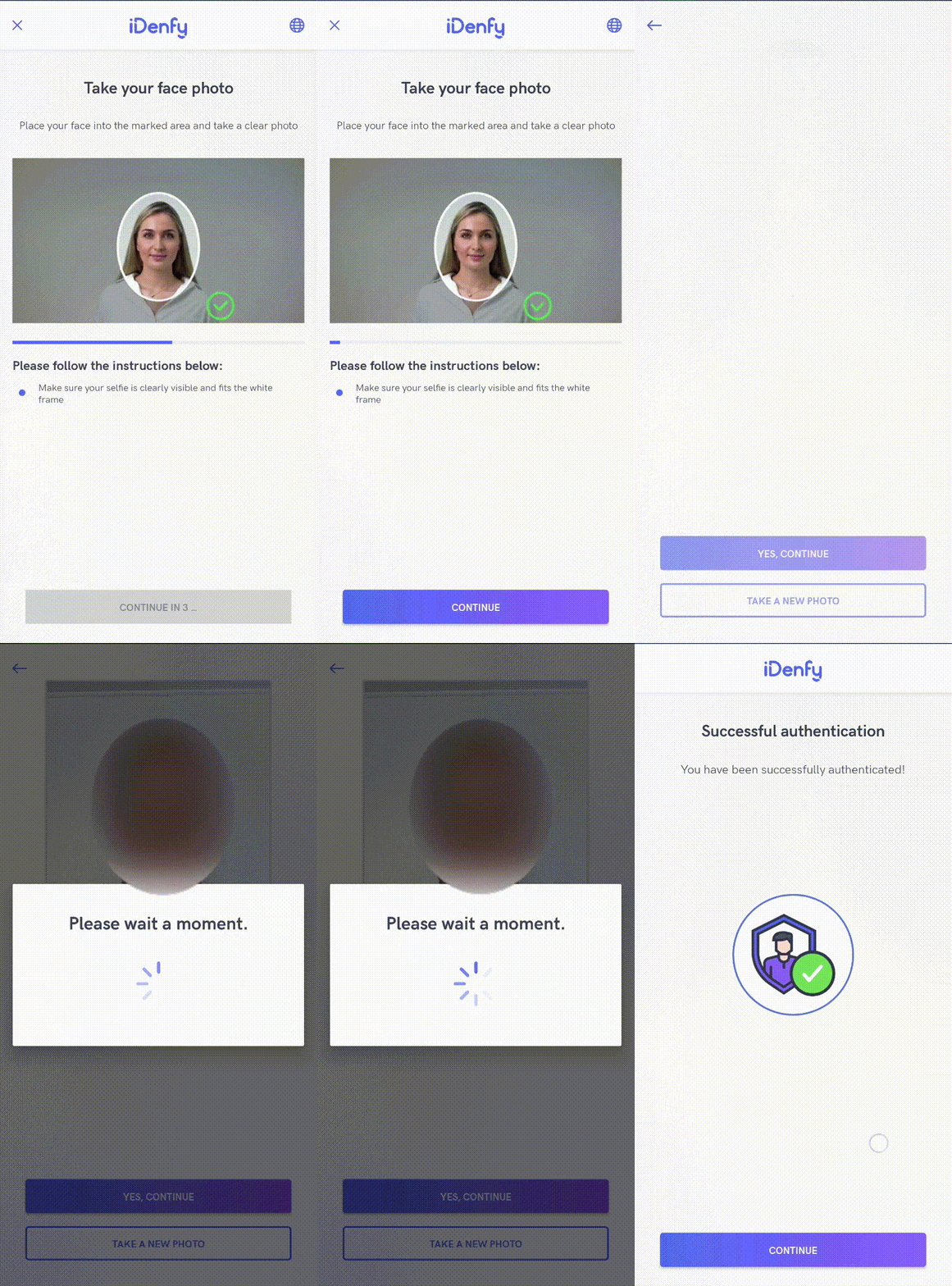
Pre-Conditions
A successful verification must be performed before initializing face authentication. For face authentication all you need is a scanRef, which is obtained during session creation.Getting Started
Follow the iDenfy SDK integration guide, which is required for face authentication as well. After completing the steps and the application compiles successfully, you are ready to implement face-auth specific logic.Handle Webhook Callback
You will receive a webhook callback if it is your preferred way of handling results (recommended as it is more secure and reliable). The webhook structure is:facePhoto key is a String (URL), can be null, with a max length of 500. It provides a URL to download the selfie photo used for authentication.
The status key has the following values:
Handle Callback in SDK
If you also want to handle results directly in the mobile app, implement the result handling in the SDK:Check Face Authentication Status and Create the Session
Before initializing the SDK, check whether your user can use face authentication and obtain an authToken. See the Create Face Auth Session documentation.Initialize SDK
Pass the session token to start face authentication:Customization
Immediate Redirect
You can pass an additional boolean to set the immediate redirect feature. This controls whether you receive results immediately from the SDK without any additional result pages. The user completes the verification, a loading state appears and closes — without showing the final status screen.Face Detection
While using face matching authentication, you can enable face detection, which requires users to place their face into the marked area before taking a photo. For better success rate, faces that are far away from the camera will not pass.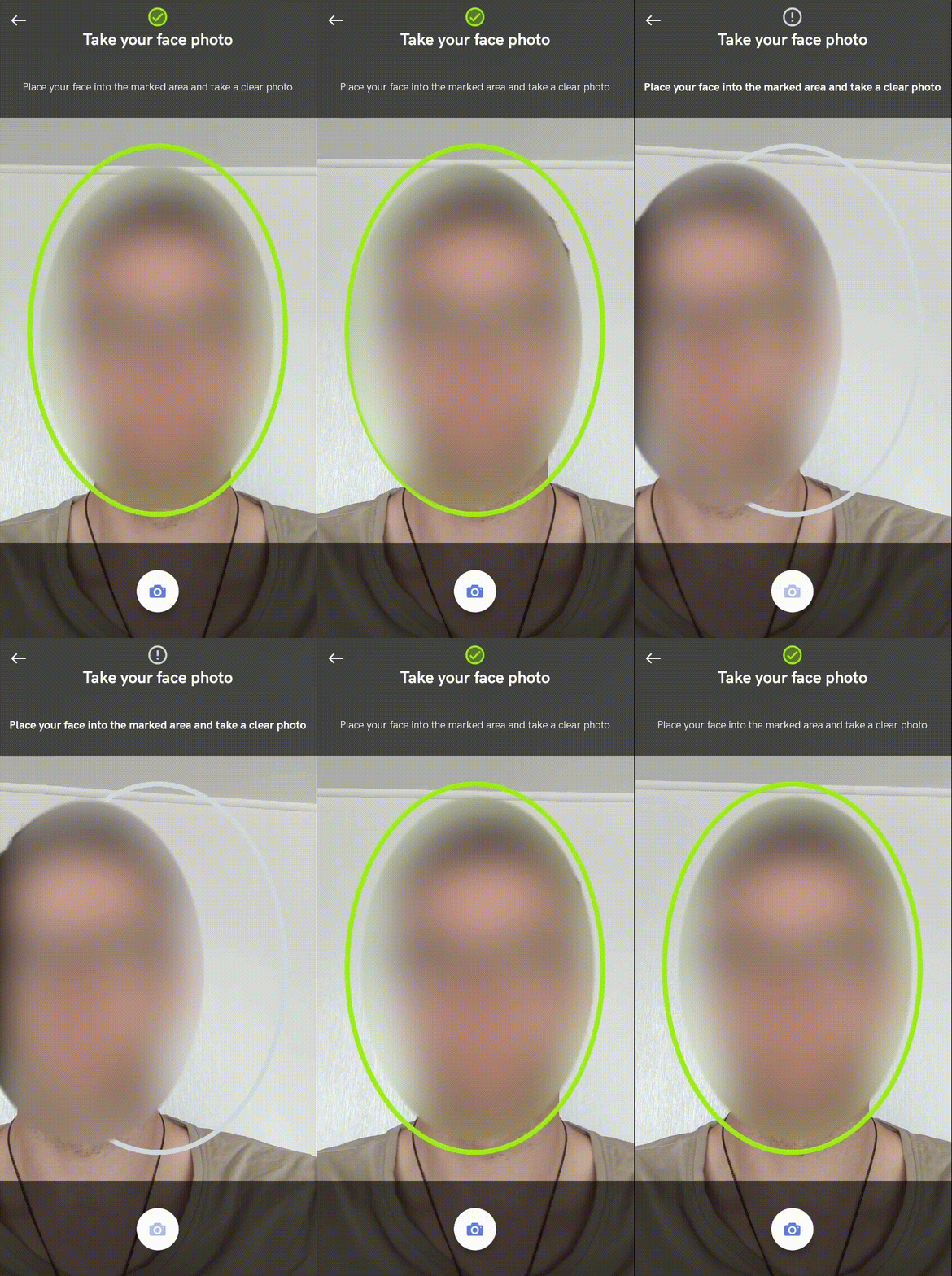
Contact tech support via the Jira customer portal to enable this feature. Face detection will apply to both KYC verification and face authentication flows.
Passive Liveness Detection
While using face matching authentication, you can enable passive liveness detection to detect whether a selfie photo is genuine or not.Contact tech support via the Jira customer portal to enable this feature. This will apply to both KYC verification and face authentication flows.
Auto Capture
You can enable auto capture, which requires users to place their face into the marked area. The picture is then automatically taken and immediately processed:
Contact tech support via the Jira customer portal to enable this feature for face authentication.