Roles
- Each team member needs to have an assigned role
- Roles are meant to ensure that users have access only to what is necessary for tasks
Main Roles
Main Roles
Team Member Setting
In the dashboard, navigate to Settings Select Team members.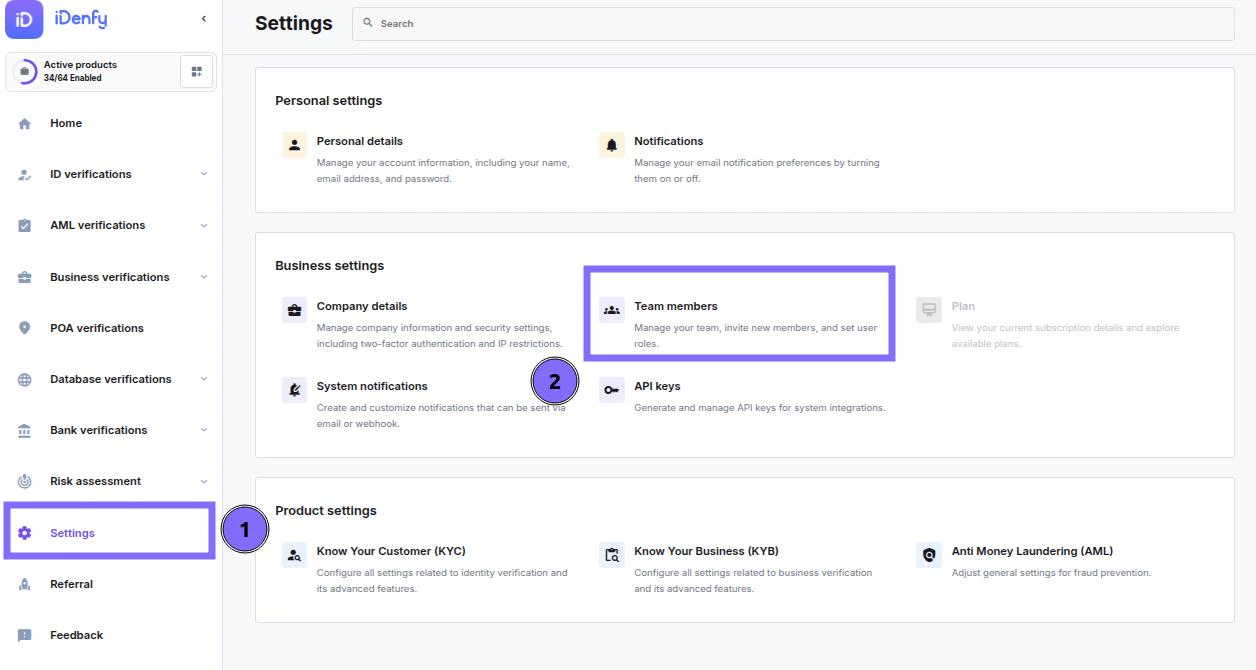
Inviting New Members
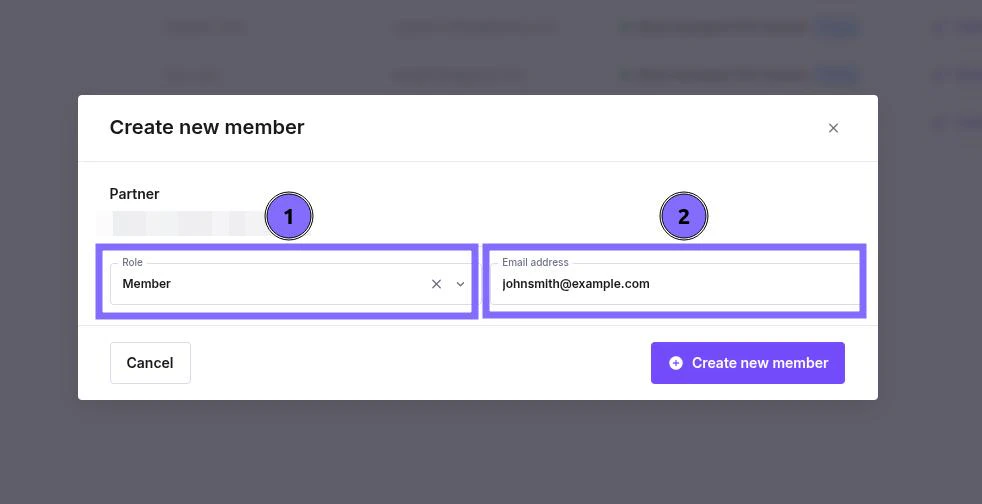
In the top right corner, click Add member In the pop-up window: Select a role from the dropdown options Enter the new member’s email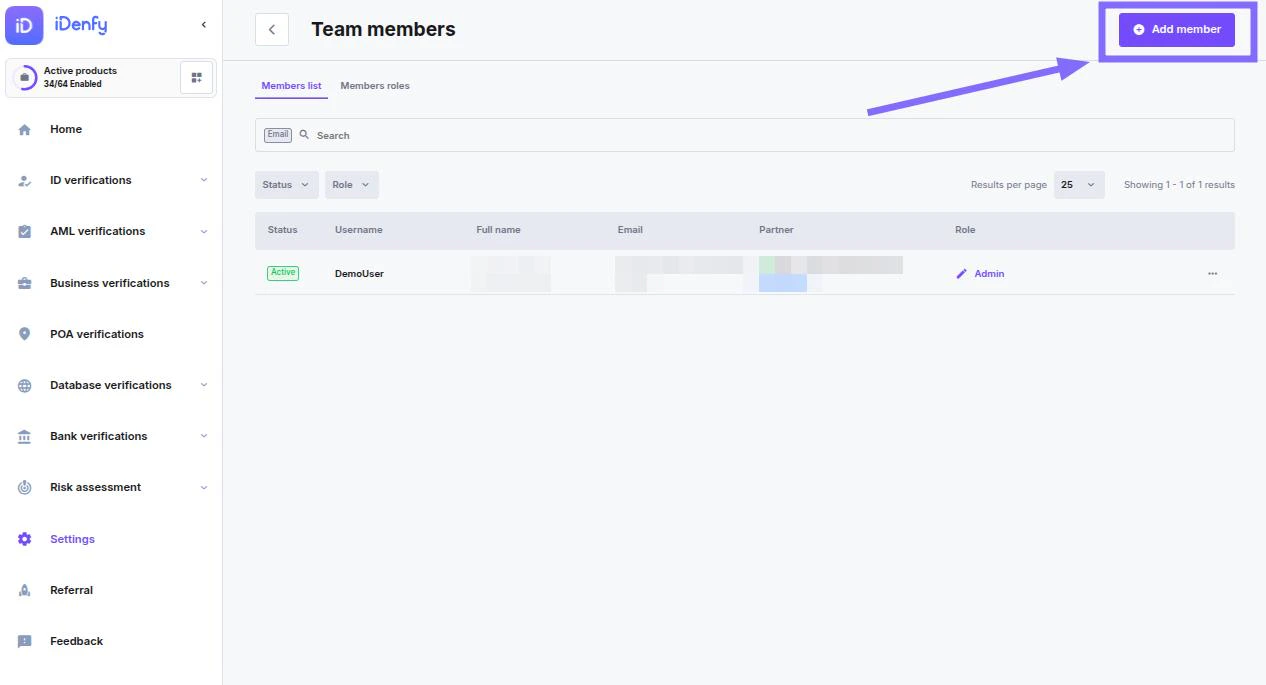
Changing the Role of the Current Member
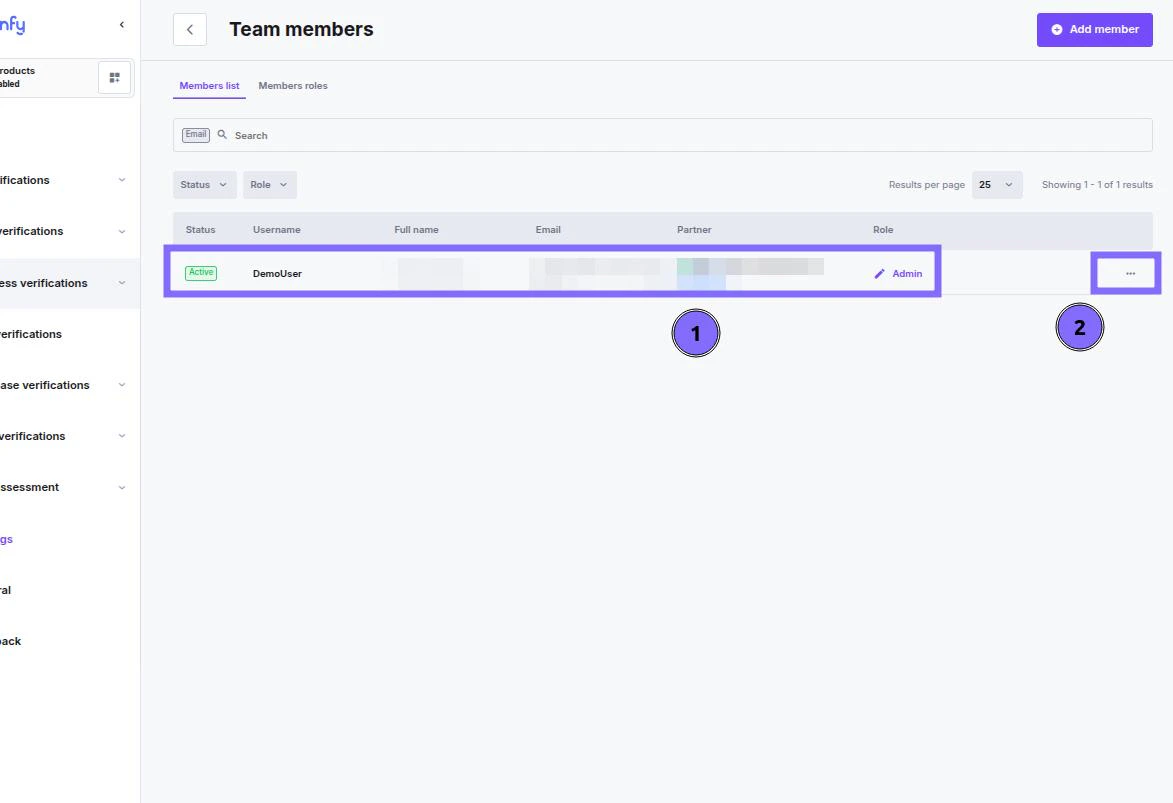
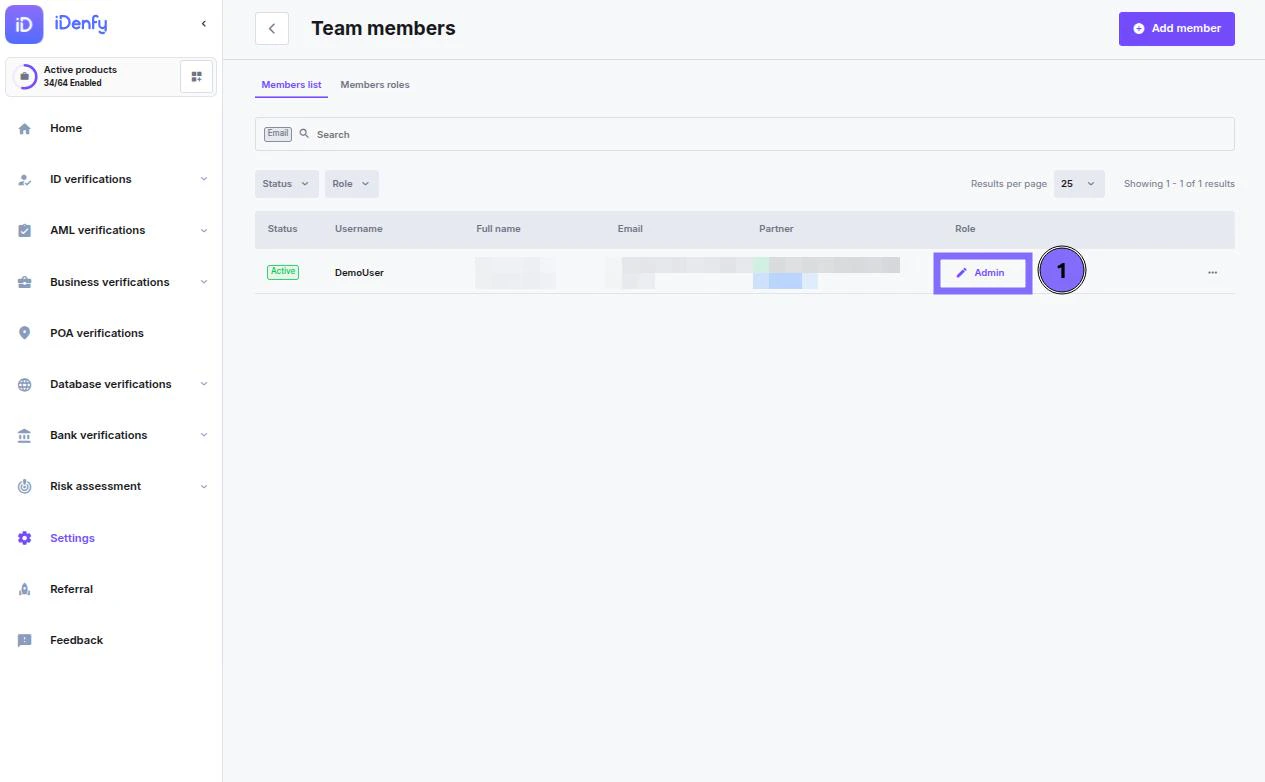
In the Team members page:- Click the current role of the member
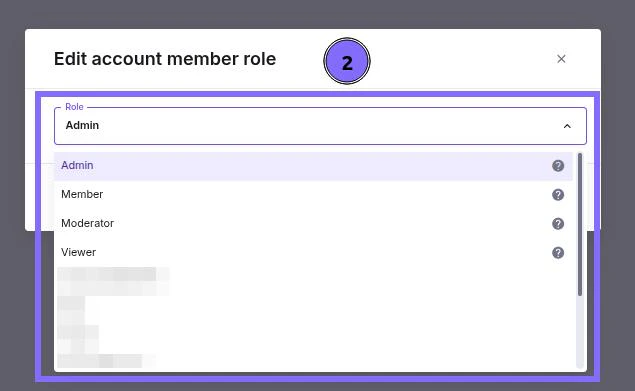
- In the pop-up window, select a new role
Good to know
- Role change requires the Admin role
- Members with the Admin role can promote other members to Admin
Removing / Deactivating Members
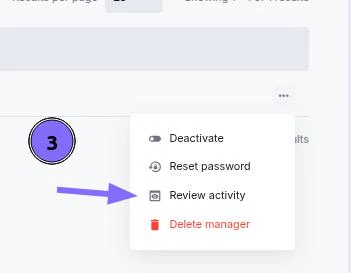
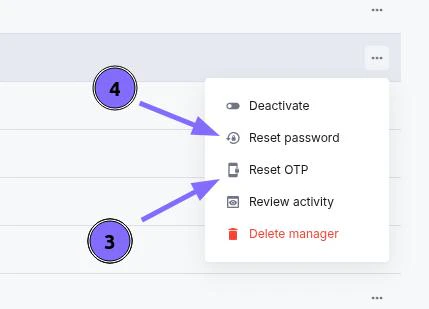
Identify the member you want to remove from the environment On the far right side, in line with the account member, click the 3 dots Select Deactivate if removing access temporarily Select the Delete manager if you want to remove the member permanently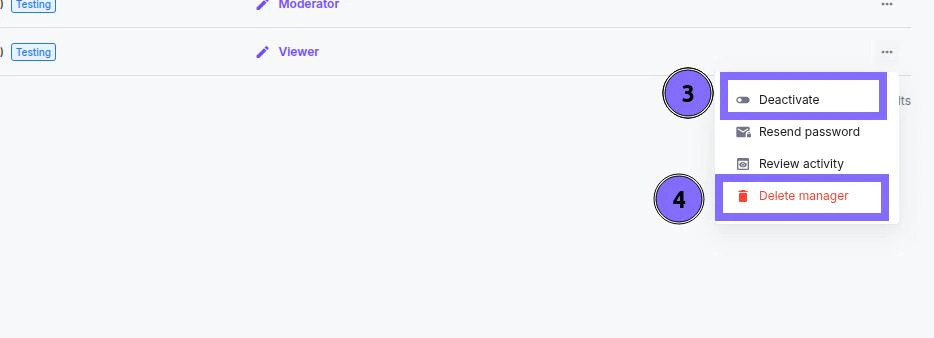
Resetting OTP / Password
Identify the member whose credentials you need to reset On the far right side, in line with the account member, click the 3 dots Select what you would like to reset Resetting a member’s password ends all of their active sessions, so they’ll have to sign in again on every device.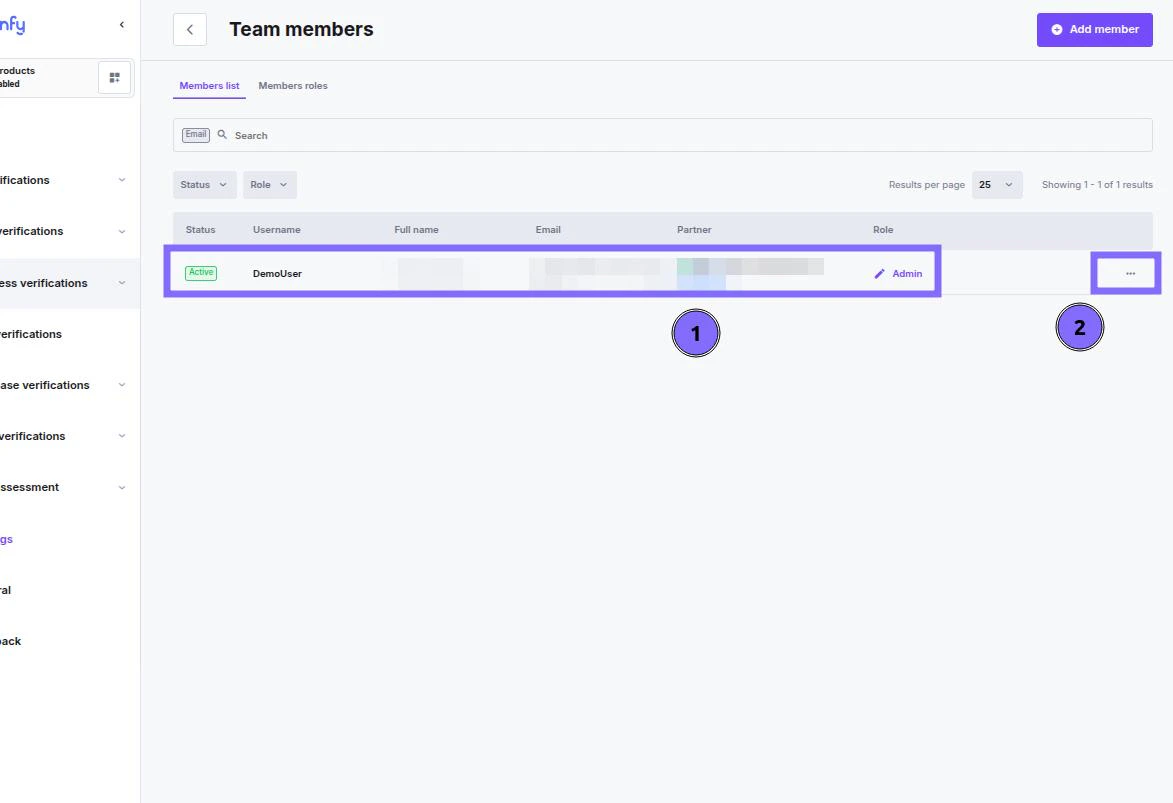
Member Activity
You can review each member’s activity and what endpoints (webpages) they visited. Identify the member whose activity log you want to see On the far right side, in line with the account member, click the 3 dots Select Review activity