- Users must confirm their phone number or email before starting verification.
- Helps reduce fraudulent attempts and ensures the identity belongs to the person initiating the process.
SMS Verification
SMS Verification for Individual Verifications
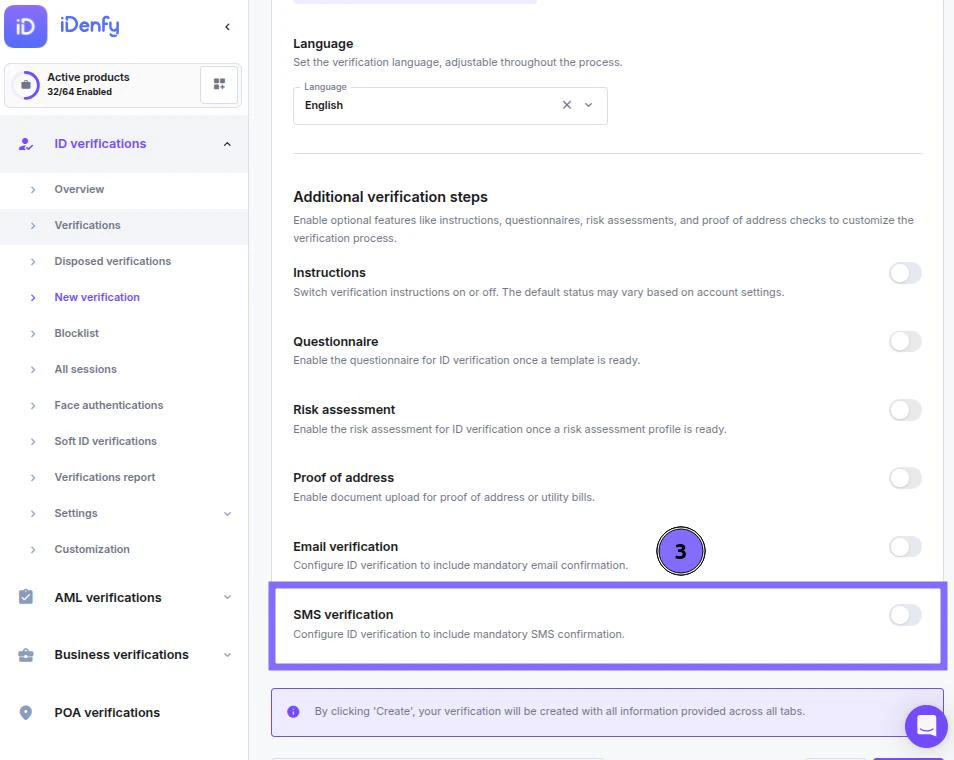
On the dashboard, navigate to the New verification section Select the Advanced Settings tab Scroll to the bottom of the settings and enable SMS verification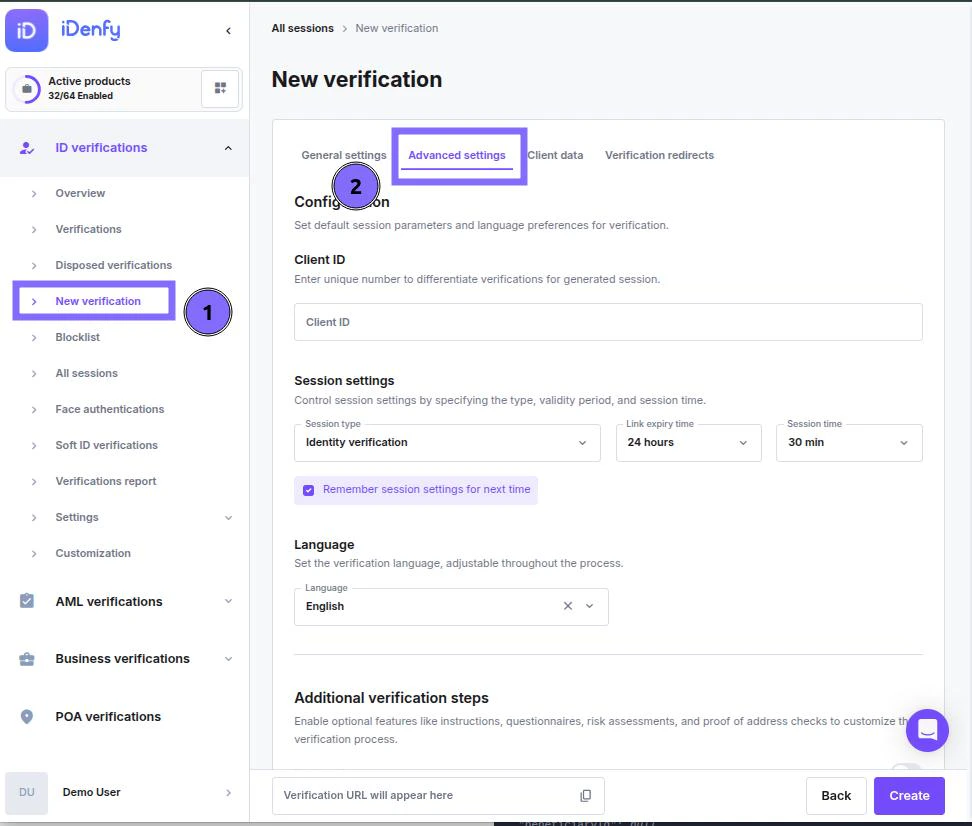
SMS Verification for All Verifications
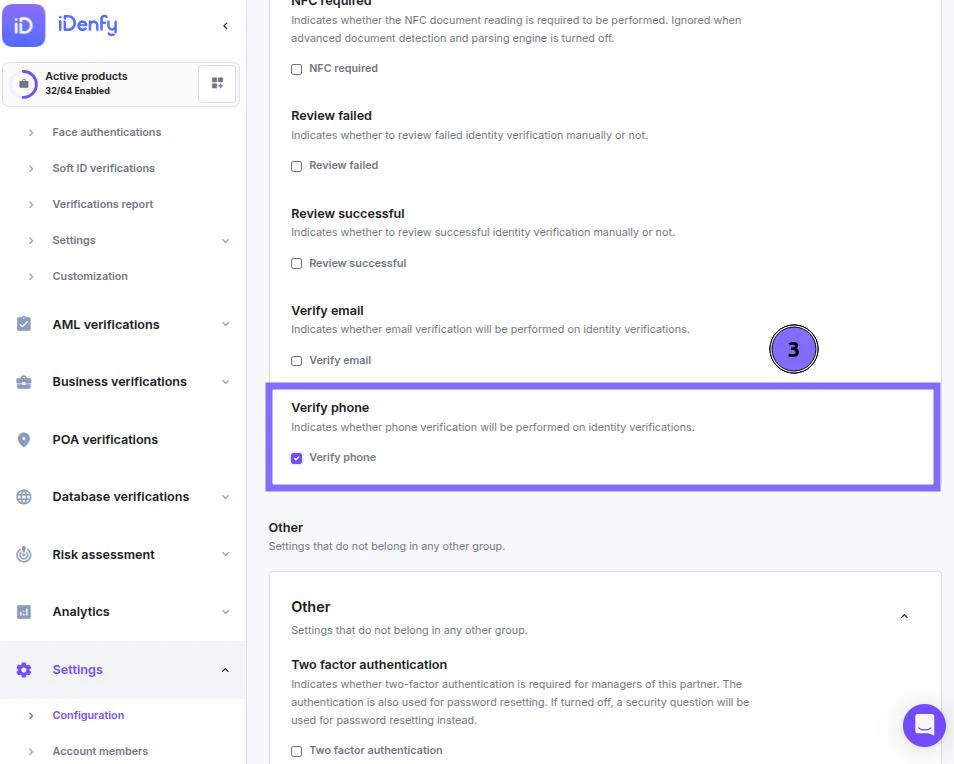
Navigate to Configurations in the Settings section Select Customisation Tab Enable the Verify phone option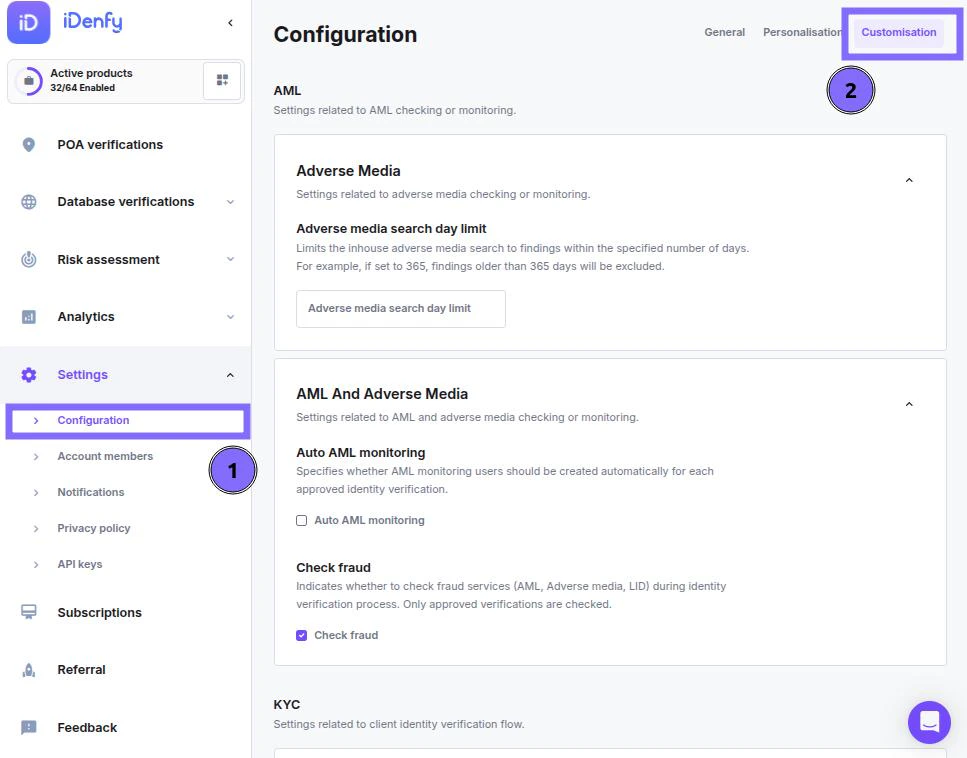
User’s Perspective (SMS)
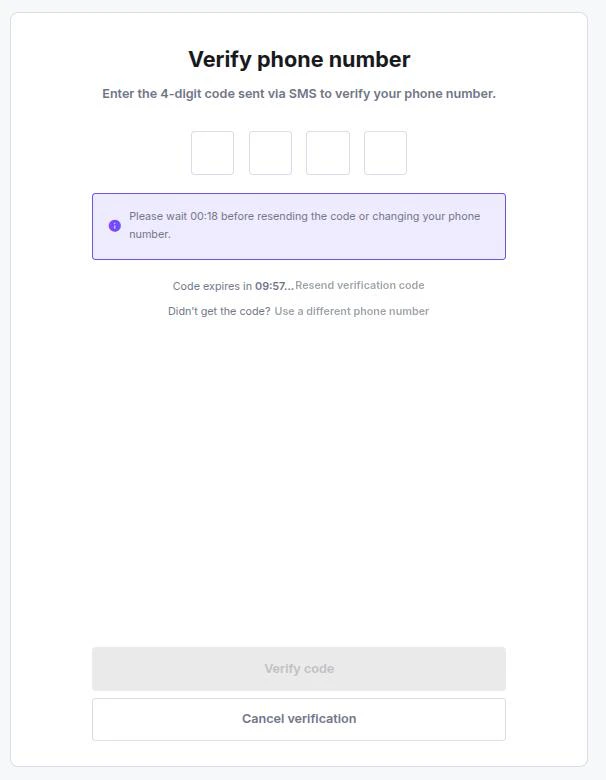
Before your user can perform verification, they must confirm their phone number Enter their phone number Receive a 4-digit code to their phone After entering the code, they will be allowed to complete verification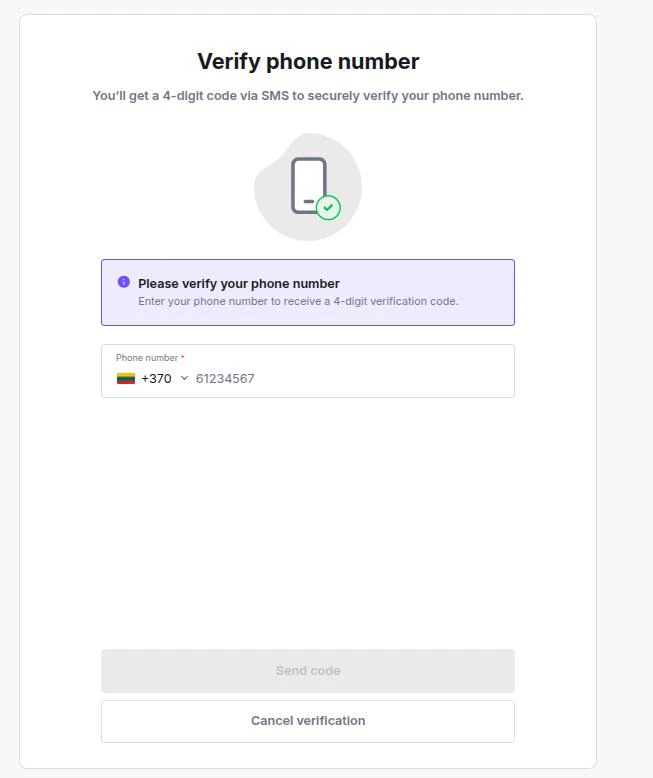
Email Verification
Email verification can always be performed either by turning it on for all KYC verifications or only enabling this for specific verifications via the dashboard when generating a token.Email Verification for Individual Verifications
On the dashboard, navigate to the New verification section Select the Advanced Settings tab Scroll to the bottom of the settings and enable Email verification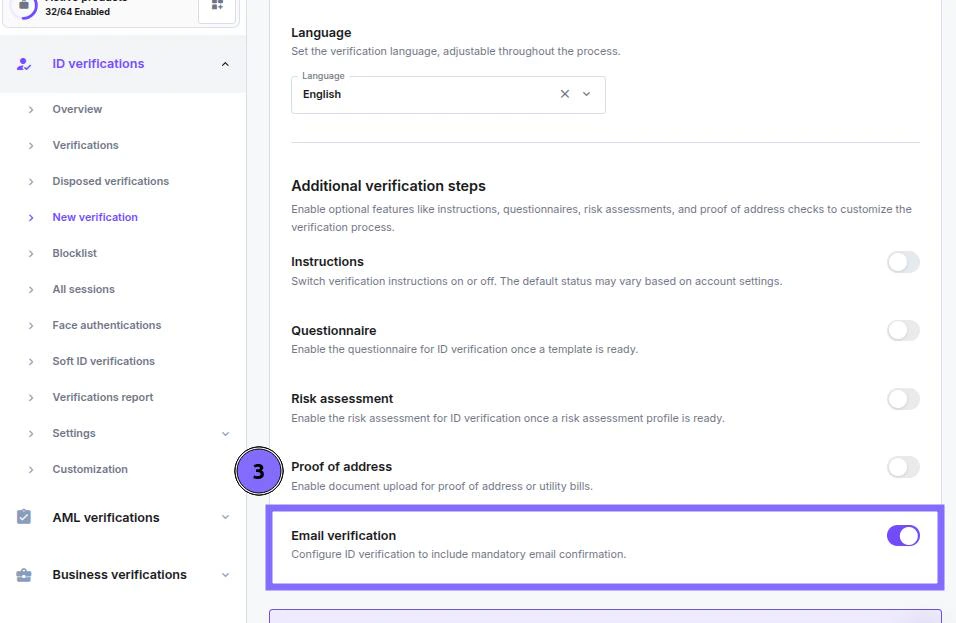
Email Verification for All Verifications
Navigate to Configurations in the Settings section Select Customisation Tab Enable the Verify email option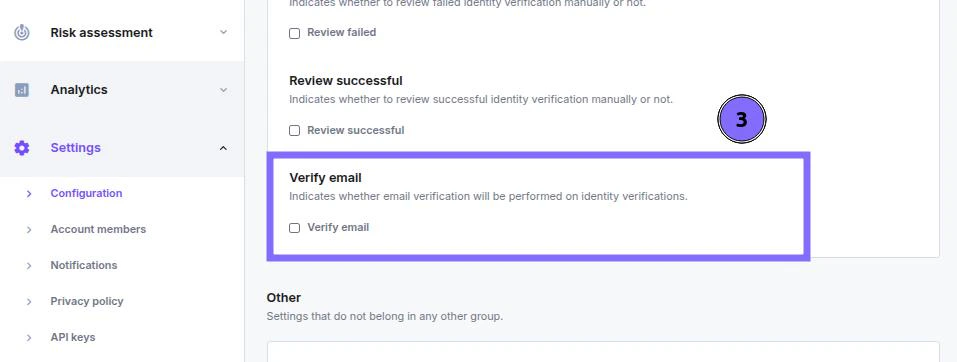
User’s Perspective
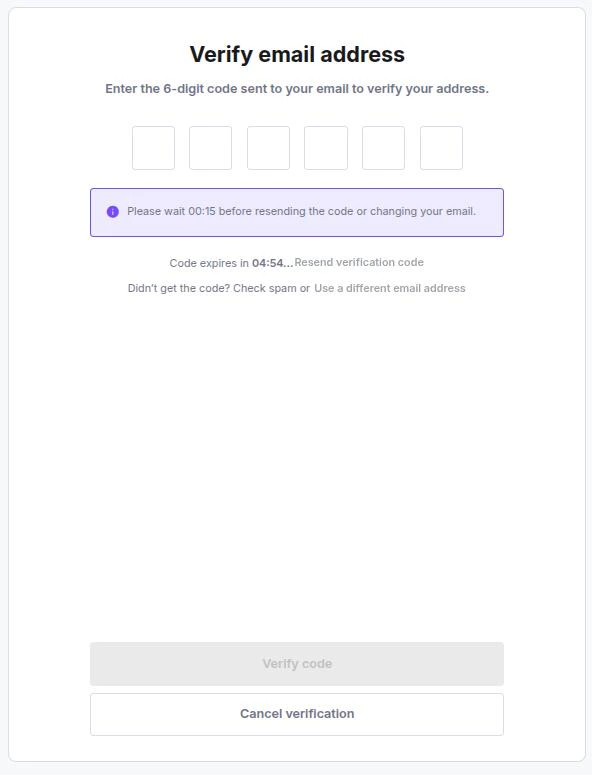
Before your user can perform verification, they must confirm their email Enter their email Receive a 6-digit code to their email After entering the code, they will be allowed to complete verification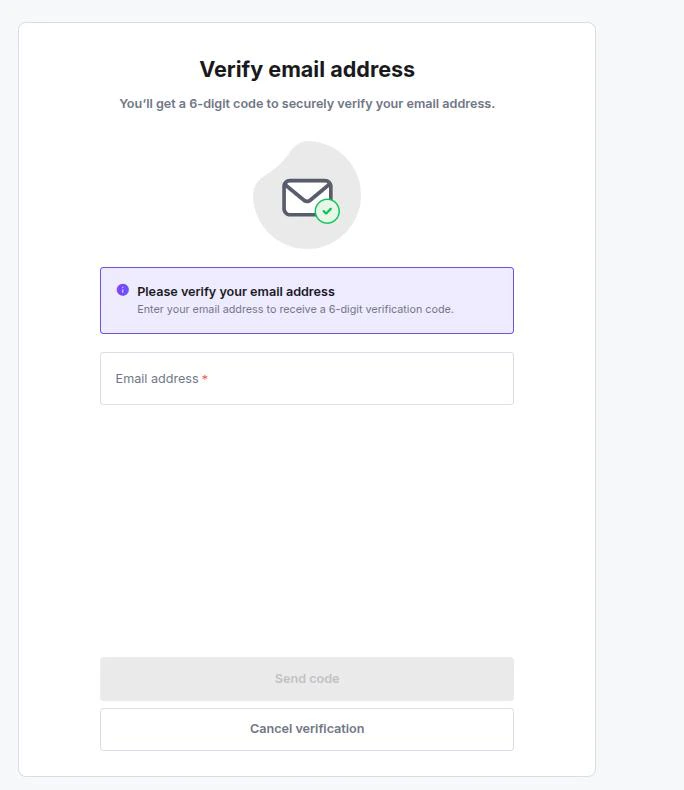
Contact Verification in the Verification Window
Find contact verification information in the verification window under the Partner information section.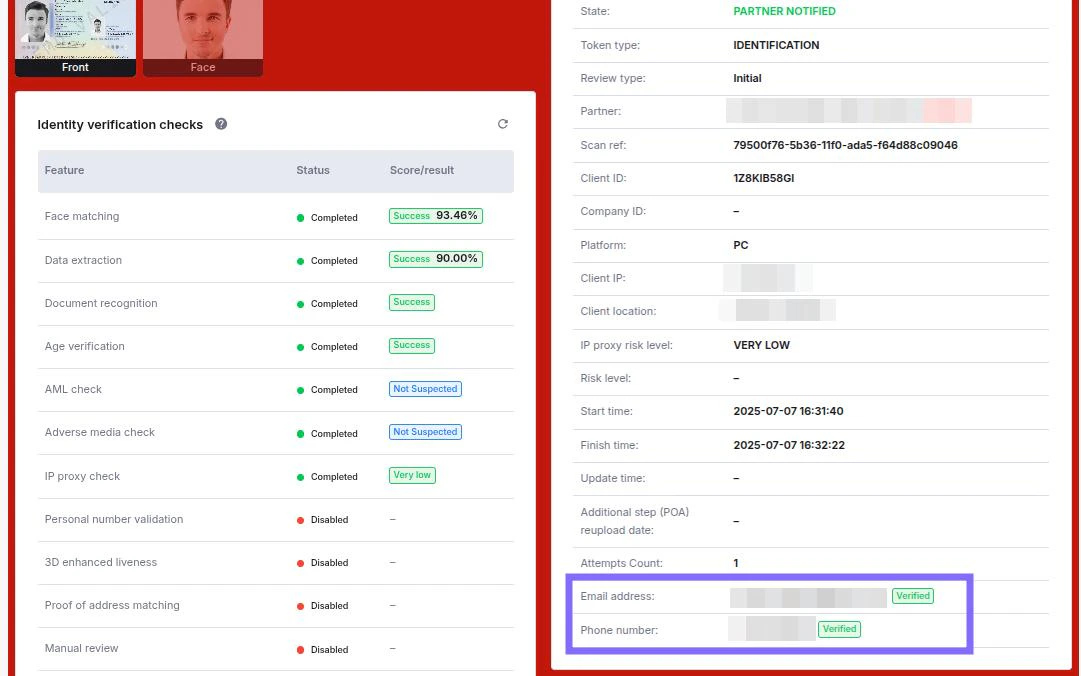
SMS and Email Verification in KYB
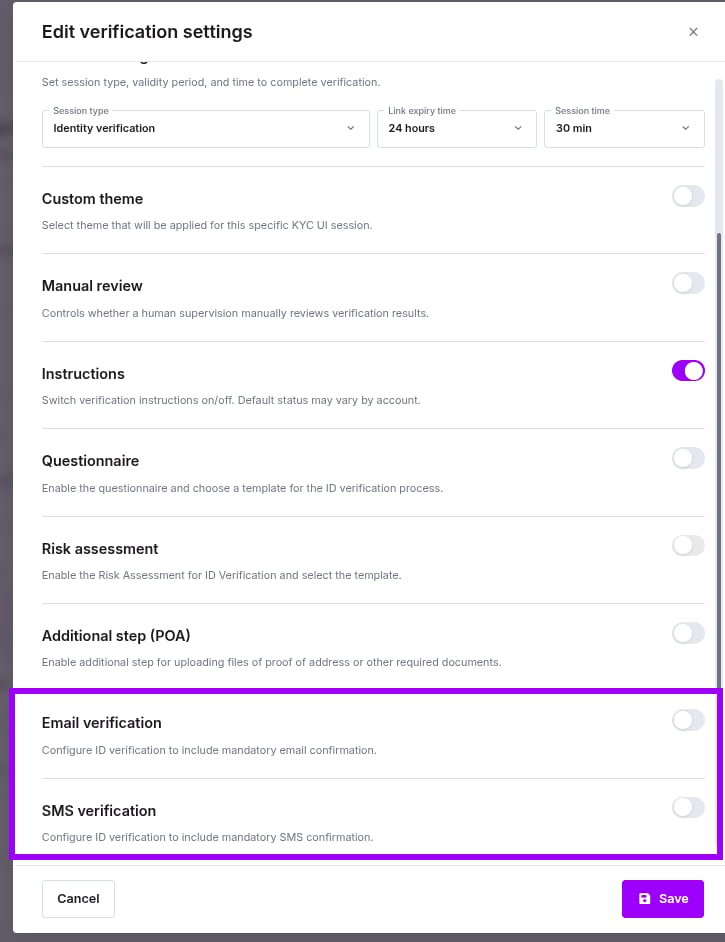
SMS and email verification can also be enabled per individual subject (director, representative, etc.) within a KYB workflow.Configuring Verification Settings for a KYB Subject
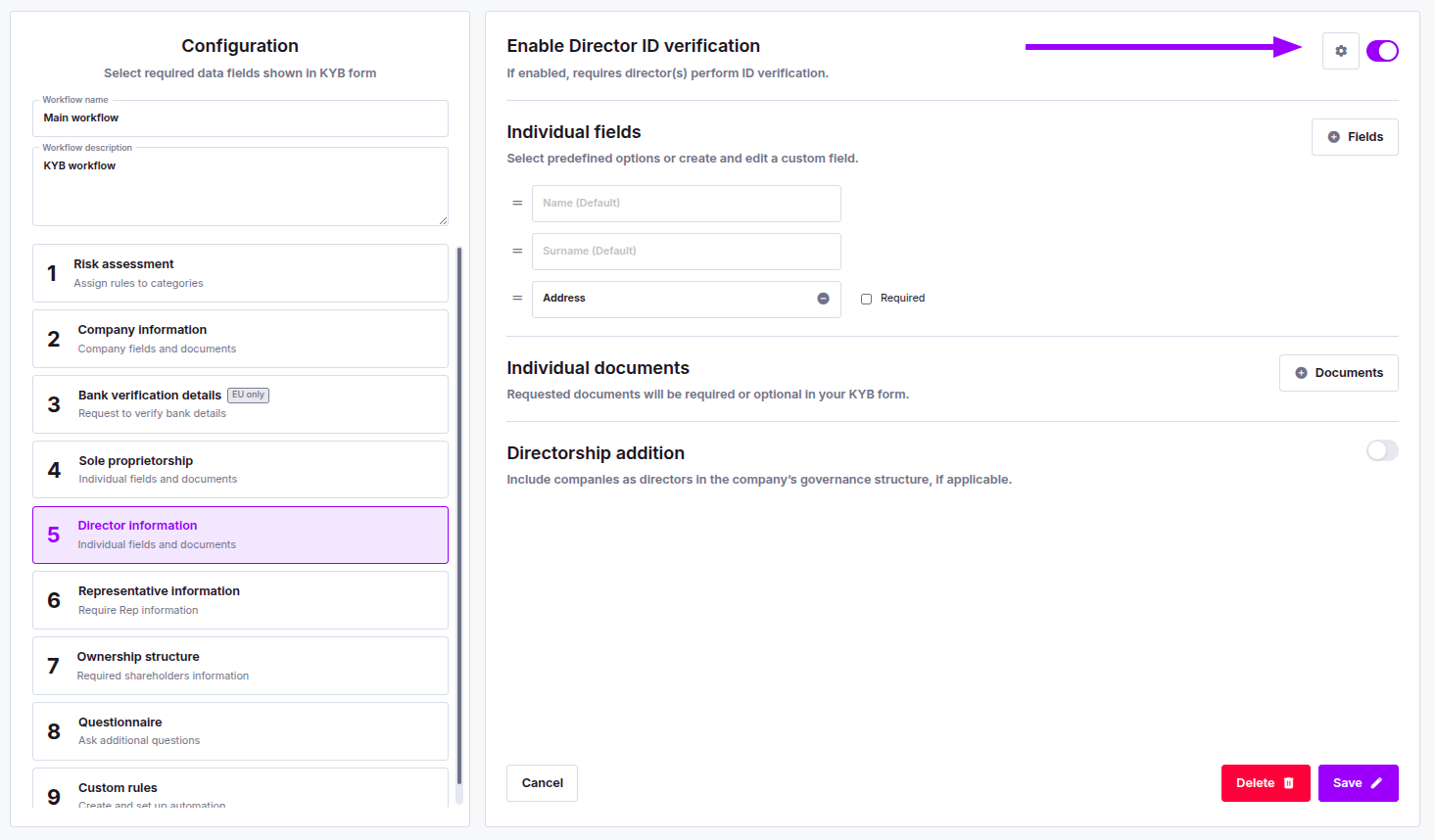
Navigate to Settings and open your KYB Workflow configuration Select the relevant step — Director information, Representative information, or Ownership structure Click the gear icon next to the ID verification toggle for that step