> ## Documentation Index
> Fetch the complete documentation index at: https://documentation.idenfy.com/llms.txt
> Use this file to discover all available pages before exploring further.
# Android SDK Face Authentication
> Implement biometric face authentication in your Android app using the iDenfy SDK for fast 30-second returning user re-verification.
Face Matching authentication works from Android SDK version 8.0.1.
## Introduction
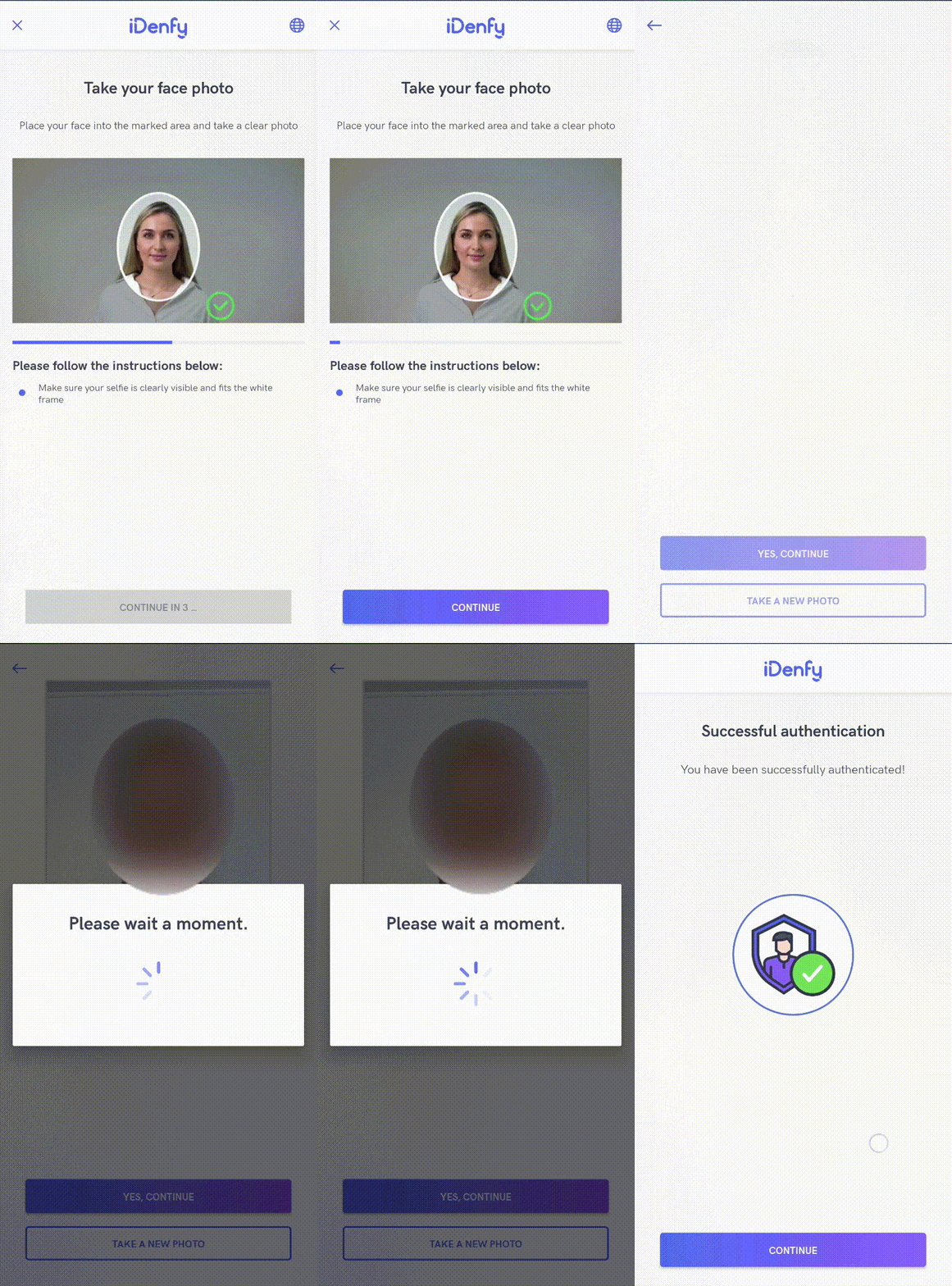
Face authentication is a tool to perform KYC checks once and then use the same scanRef to perform multiple verifications in just **30 seconds**.
The flow only requires your user to take a regular face photo to perform the authentication.
 ## Pre-Conditions
A [successful verification](/kyc/generate-token#graphical-representation-of-token-generation-uml-activity) must be performed before initializing face authentication. For face authentication all you need is a scanRef, which is obtained during [session creation](/kyc/generate-token#receiving-response).
## Getting Started
Follow the [iDenfy SDK integration guide](/sdks/android/quickstart), which is required for face authentication as well.
After completing the steps and the application **compiles successfully**, you are ready to implement **face-auth specific** logic.
You can also download **the sample app**, which supports face authentication. [Download here](https://github.com/idenfy/iDenfyResources/blob/main/sdk/android/tutorials/sample/idenfy_sample_android.zip).
### Handle Webhook Callback
You will receive a webhook callback if it is your preferred way of handling results (recommended as it is more secure and reliable). The webhook structure is:
```json theme={"system"}
{
"token": "token",
"clientId": "clientId",
"scanRef": "scanRef",
"status": "SUCCESS",
"type": "AUTHENTICATION",
"method": "FACE_MATCHING",
"facePhoto": "https://s3.eu-west-1.amazonaws.com/production.users.storage/users_storage/users//FRONT.png?AWSAccessKeyId=&Signature=&Expires="
}
```
The `facePhoto` key is a String (URL), can be null, with a max length of 500. It provides a URL to download the selfie photo used for authentication.
The `status` key has the following values:
| Name | Description |
| ---------- | ---------------------------------------------------------------------------------------------------------------------------------------------------------------------- |
| `SUCCESS` | The user completed face authentication flow and the authentication status, provided by an automated platform, is SUCCESS. |
| `FAILED` | The user completed face authentication flow and the authentication status, provided by an automated platform, is FAILED. |
| `CANCELED` | The user did not complete the face authentication flow and canceled it and the identification status, provided by an automated platform, is EXIT. |
| `EXPIRED` | The user did not complete the face authentication flow, but did not cancel it explicitly and the identification status, provided by an automated platform, is EXPIRED. |
To set your webhook URL, contact tech support via the [dashboard](https://admin.idenfy.com/auth/login).
### Handle Callback in SDK
If you also want to handle results directly in the mobile app, implement the result handling in the SDK:
```Kotlin theme={"system"}
private var identificationResultsCallback = registerForActivityResult(
ActivityResultContracts.StartActivityForResult()
) { result: ActivityResult ->
val resultCode = result.resultCode
val data = result.data
if (resultCode == IdenfyController.IDENFY_FACE_AUTHENTICATION_RESULT_CODE) {
val faceAuthenticationResult: FaceAuthenticationResult =
data!!.getParcelableExtra(IdenfyController.IDENFY_FACE_AUTHENTICATION_RESULT)!!
Toast.makeText(this, "Face Authentication Status: " + faceAuthenticationResult.faceAuthenticationStatus.status, Toast.LENGTH_SHORT).show()
when (faceAuthenticationResult.faceAuthenticationStatus) {
FaceAuthenticationStatus.SUCCESS -> {
// The user completed authentication flow, was successfully authenticated
}
FaceAuthenticationStatus.FAILED -> {
// The user completed authentication flow, was not successfully authenticated
}
FaceAuthenticationStatus.EXIT -> {
// The user did not complete authentication flow
}
}
}
}
```
### Check Face Authentication Status and Create the Session
Before initializing the SDK, check whether your user can use face authentication and obtain an authToken. See the [Create Face Auth Session](/face-authentication/token-generation) documentation.
### Initialize SDK
Pass the session token to start face authentication:
```Kotlin theme={"system"}
val faceAuthenticationInitialization = FaceAuthenticationInitialization(token)
IdenfyController.getInstance().initializeFaceAuthenticationSDKV2(requireActivity(), (requireActivity() as BaseActivity).identificationResultsCallback, faceAuthenticationInitialization)
```
## Customization
### Immediate Redirect
You can pass an additional boolean to set the immediate redirect feature. This controls whether you **receive results immediately** from the SDK without any additional result pages.
The user completes the verification, a loading state appears and closes -- without showing the final status screen.
```Kotlin theme={"system"}
val faceAuthenticationInitialization = FaceAuthenticationInitialization(token, true)
```
### Face Detection
You can enable face detection, which requires users to place their face into the marked area before taking a photo.
## Pre-Conditions
A [successful verification](/kyc/generate-token#graphical-representation-of-token-generation-uml-activity) must be performed before initializing face authentication. For face authentication all you need is a scanRef, which is obtained during [session creation](/kyc/generate-token#receiving-response).
## Getting Started
Follow the [iDenfy SDK integration guide](/sdks/android/quickstart), which is required for face authentication as well.
After completing the steps and the application **compiles successfully**, you are ready to implement **face-auth specific** logic.
You can also download **the sample app**, which supports face authentication. [Download here](https://github.com/idenfy/iDenfyResources/blob/main/sdk/android/tutorials/sample/idenfy_sample_android.zip).
### Handle Webhook Callback
You will receive a webhook callback if it is your preferred way of handling results (recommended as it is more secure and reliable). The webhook structure is:
```json theme={"system"}
{
"token": "token",
"clientId": "clientId",
"scanRef": "scanRef",
"status": "SUCCESS",
"type": "AUTHENTICATION",
"method": "FACE_MATCHING",
"facePhoto": "https://s3.eu-west-1.amazonaws.com/production.users.storage/users_storage/users//FRONT.png?AWSAccessKeyId=&Signature=&Expires="
}
```
The `facePhoto` key is a String (URL), can be null, with a max length of 500. It provides a URL to download the selfie photo used for authentication.
The `status` key has the following values:
| Name | Description |
| ---------- | ---------------------------------------------------------------------------------------------------------------------------------------------------------------------- |
| `SUCCESS` | The user completed face authentication flow and the authentication status, provided by an automated platform, is SUCCESS. |
| `FAILED` | The user completed face authentication flow and the authentication status, provided by an automated platform, is FAILED. |
| `CANCELED` | The user did not complete the face authentication flow and canceled it and the identification status, provided by an automated platform, is EXIT. |
| `EXPIRED` | The user did not complete the face authentication flow, but did not cancel it explicitly and the identification status, provided by an automated platform, is EXPIRED. |
To set your webhook URL, contact tech support via the [dashboard](https://admin.idenfy.com/auth/login).
### Handle Callback in SDK
If you also want to handle results directly in the mobile app, implement the result handling in the SDK:
```Kotlin theme={"system"}
private var identificationResultsCallback = registerForActivityResult(
ActivityResultContracts.StartActivityForResult()
) { result: ActivityResult ->
val resultCode = result.resultCode
val data = result.data
if (resultCode == IdenfyController.IDENFY_FACE_AUTHENTICATION_RESULT_CODE) {
val faceAuthenticationResult: FaceAuthenticationResult =
data!!.getParcelableExtra(IdenfyController.IDENFY_FACE_AUTHENTICATION_RESULT)!!
Toast.makeText(this, "Face Authentication Status: " + faceAuthenticationResult.faceAuthenticationStatus.status, Toast.LENGTH_SHORT).show()
when (faceAuthenticationResult.faceAuthenticationStatus) {
FaceAuthenticationStatus.SUCCESS -> {
// The user completed authentication flow, was successfully authenticated
}
FaceAuthenticationStatus.FAILED -> {
// The user completed authentication flow, was not successfully authenticated
}
FaceAuthenticationStatus.EXIT -> {
// The user did not complete authentication flow
}
}
}
}
```
### Check Face Authentication Status and Create the Session
Before initializing the SDK, check whether your user can use face authentication and obtain an authToken. See the [Create Face Auth Session](/face-authentication/token-generation) documentation.
### Initialize SDK
Pass the session token to start face authentication:
```Kotlin theme={"system"}
val faceAuthenticationInitialization = FaceAuthenticationInitialization(token)
IdenfyController.getInstance().initializeFaceAuthenticationSDKV2(requireActivity(), (requireActivity() as BaseActivity).identificationResultsCallback, faceAuthenticationInitialization)
```
## Customization
### Immediate Redirect
You can pass an additional boolean to set the immediate redirect feature. This controls whether you **receive results immediately** from the SDK without any additional result pages.
The user completes the verification, a loading state appears and closes -- without showing the final status screen.
```Kotlin theme={"system"}
val faceAuthenticationInitialization = FaceAuthenticationInitialization(token, true)
```
### Face Detection
You can enable face detection, which requires users to place their face into the marked area before taking a photo.
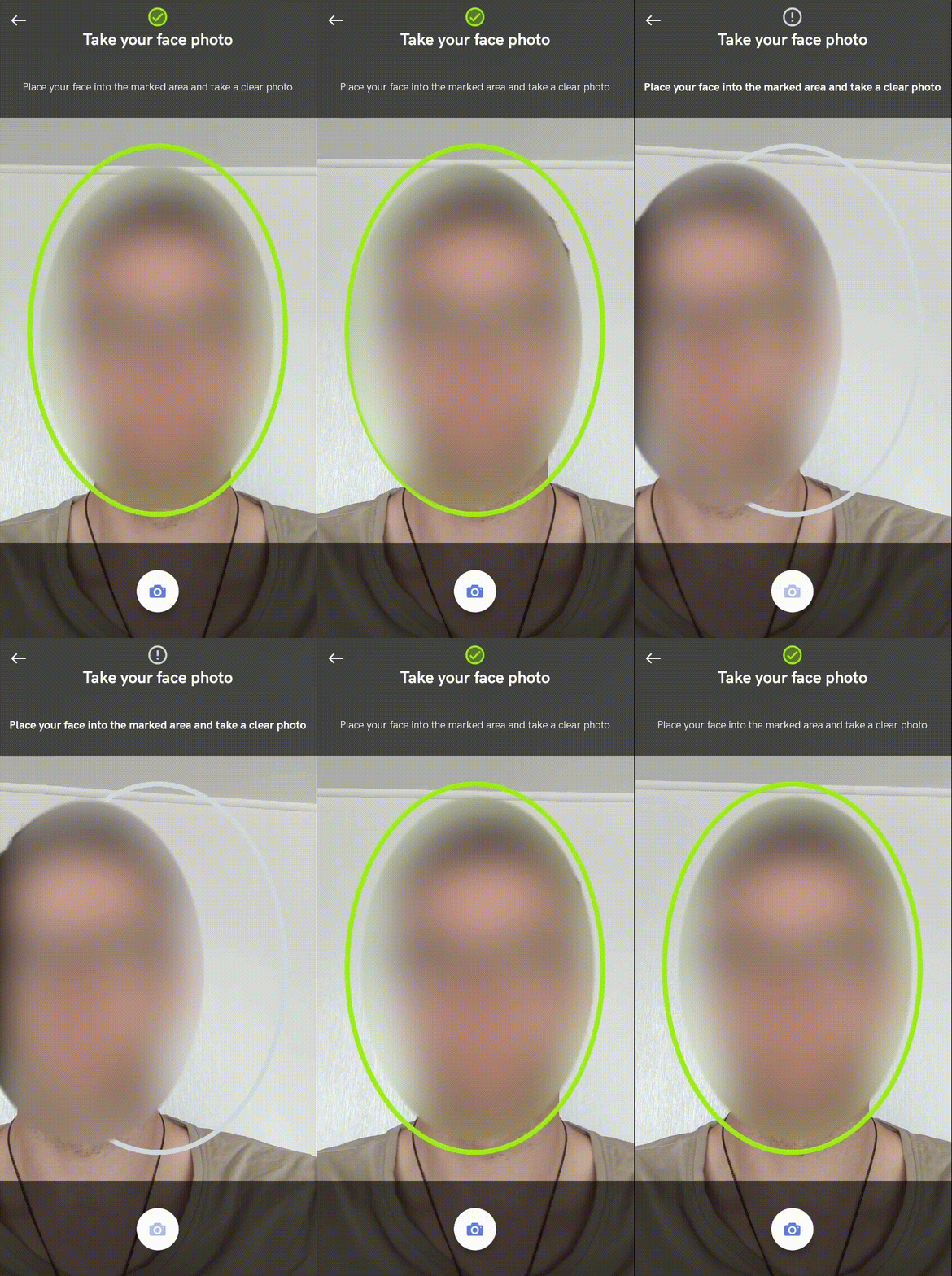 Contact tech support via the [Jira customer portal](https://idenfy-ivs.atlassian.net/servicedesk/customer/portal/1) to enable this feature. Face detection will apply to **both** KYC verification and face authentication flows.
### Passive Liveness Detection
While using face matching authentication, you can enable passive liveness detection to detect whether a selfie photo is genuine or not.
Contact tech support via the [Jira customer portal](https://idenfy-ivs.atlassian.net/servicedesk/customer/portal/1) to enable this feature. This will apply to **both** KYC verification and face authentication flows.
### Auto Capture
You can enable auto capture, which requires users to place their face into the marked area. The picture is then automatically taken and immediately processed:
Contact tech support via the [Jira customer portal](https://idenfy-ivs.atlassian.net/servicedesk/customer/portal/1) to enable this feature. Face detection will apply to **both** KYC verification and face authentication flows.
### Passive Liveness Detection
While using face matching authentication, you can enable passive liveness detection to detect whether a selfie photo is genuine or not.
Contact tech support via the [Jira customer portal](https://idenfy-ivs.atlassian.net/servicedesk/customer/portal/1) to enable this feature. This will apply to **both** KYC verification and face authentication flows.
### Auto Capture
You can enable auto capture, which requires users to place their face into the marked area. The picture is then automatically taken and immediately processed:
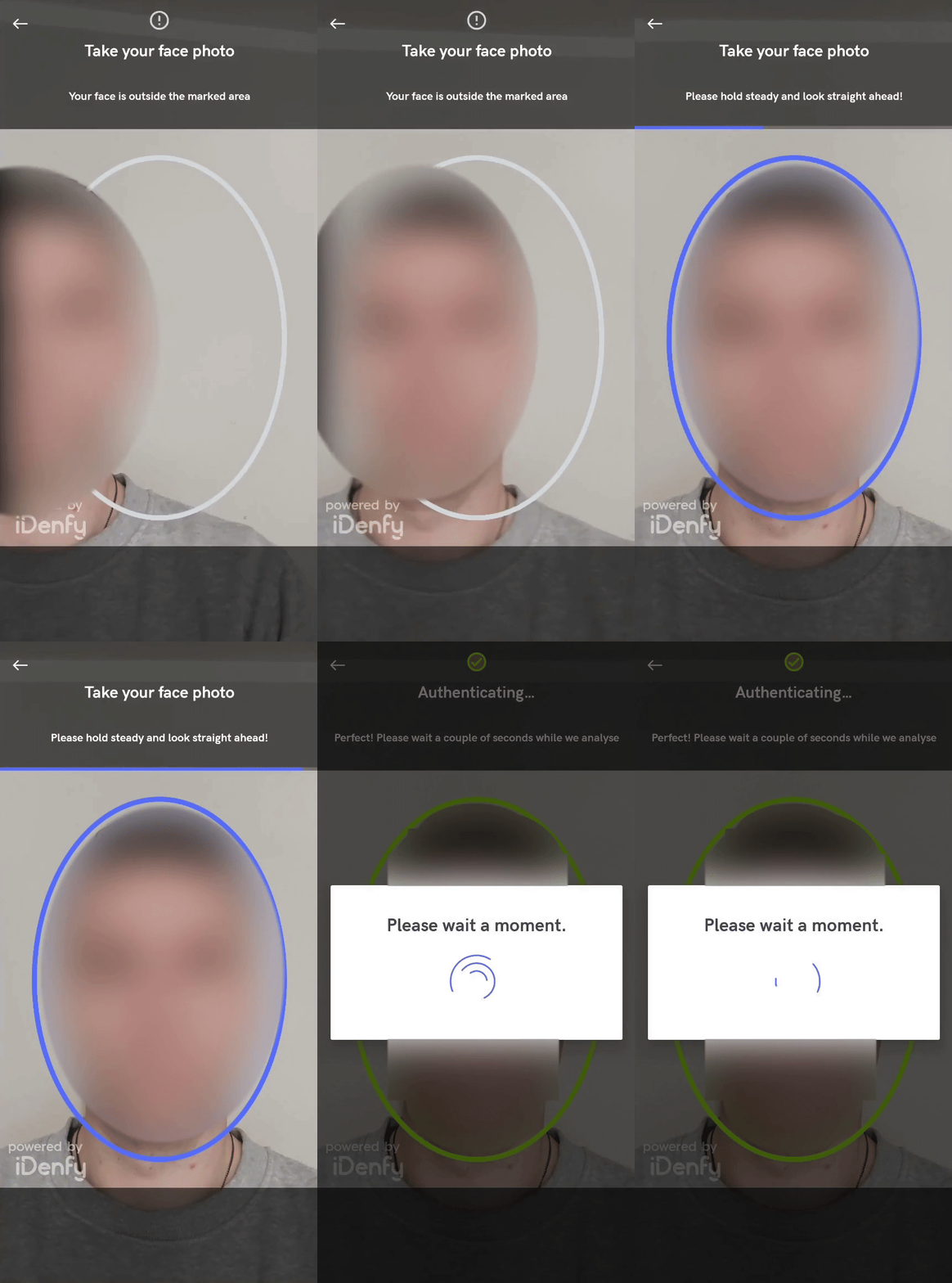 Contact tech support via the [Jira customer portal](https://idenfy-ivs.atlassian.net/servicedesk/customer/portal/1) to enable this feature for face authentication.
## UI Customization
The UI can be customized the same as the [KYC verification flow](/sdks/android/ui-customization). Main [colors or styles](/sdks/android/ui-customization#customization-with-overriding-layouts-of-sdk) in the **styles.xml** or **colors.xml** files of your app target can be overridden, as well as the [layouts](/sdks/android/ui-customization#customization-with-overriding-layouts-of-sdk).
Find colors, styles, and layouts in the [repository](https://github.com/idenfy/iDenfyResources/tree/main/sdk/android/).
Face authentication flow has additional UI settings that can be passed using **IdenfyFaceAuthUIBuilder** along with **FaceAuthenticationInitialization**:
```kotlin theme={"system"}
val idenfyFaceAuthUISettings = IdenfyFaceAuthUISettings.IdenfyFaceAuthUIBuilder()
//Show or hide language selection button
.withLanguageSelection(true)
//Show or skip camera on boarding screen
.withOnBoardingView(true)
.build()
val faceAuthenticationInitialization = FaceAuthenticationInitialization(
token,
idenfyFaceAuthUISettings = idenfyFaceAuthUISettings
)
```
## Related topics
- [iOS SDK Face Authentication](/sdks/ios/face-authentication.md)
- [Android SDK Additional Features](/sdks/android/additional-features.md)
- [Android SDK Migration Guide](/sdks/android/migration-guide.md)
- [Face Authentication](/face-authentication/overview.md)
- [Face Authentication in the Dashboard](/guides/dashboard/face-auth/face-authentication.md)
Contact tech support via the [Jira customer portal](https://idenfy-ivs.atlassian.net/servicedesk/customer/portal/1) to enable this feature for face authentication.
## UI Customization
The UI can be customized the same as the [KYC verification flow](/sdks/android/ui-customization). Main [colors or styles](/sdks/android/ui-customization#customization-with-overriding-layouts-of-sdk) in the **styles.xml** or **colors.xml** files of your app target can be overridden, as well as the [layouts](/sdks/android/ui-customization#customization-with-overriding-layouts-of-sdk).
Find colors, styles, and layouts in the [repository](https://github.com/idenfy/iDenfyResources/tree/main/sdk/android/).
Face authentication flow has additional UI settings that can be passed using **IdenfyFaceAuthUIBuilder** along with **FaceAuthenticationInitialization**:
```kotlin theme={"system"}
val idenfyFaceAuthUISettings = IdenfyFaceAuthUISettings.IdenfyFaceAuthUIBuilder()
//Show or hide language selection button
.withLanguageSelection(true)
//Show or skip camera on boarding screen
.withOnBoardingView(true)
.build()
val faceAuthenticationInitialization = FaceAuthenticationInitialization(
token,
idenfyFaceAuthUISettings = idenfyFaceAuthUISettings
)
```
## Related topics
- [iOS SDK Face Authentication](/sdks/ios/face-authentication.md)
- [Android SDK Additional Features](/sdks/android/additional-features.md)
- [Android SDK Migration Guide](/sdks/android/migration-guide.md)
- [Face Authentication](/face-authentication/overview.md)
- [Face Authentication in the Dashboard](/guides/dashboard/face-auth/face-authentication.md)