Requirements
- Setting up webhooks requires Admin role
- Set up webhooks
- Your endpoint must have a valid SSL certificate for TLS webhooks to prevent delivery failures
Setting Up Notifications
To set up notifications, log in to your dashboard and navigate to Settings > Notifications.Webhook Events for Companies
The following webhook events are available for company-related notifications. For full payload details on each event, see the API Reference tab.Webhook Events for Reports
Webhook Troubleshooting
Ensure That
- You have provided a valid callback endpoint (it does not contain typos and is a fully specified URL with HTTP schema, port, and domain name).
- The provided endpoint can be reached from the internet.
- Your SSL is set up correctly. The system can only send webhooks to URLs with valid SSL certificates.
- You are truly not receiving a callback and your framework is not accidentally returning some other HTTP response (e.g. 422 or 500).
Review Webhooks Sent via iDenfy Dashboard
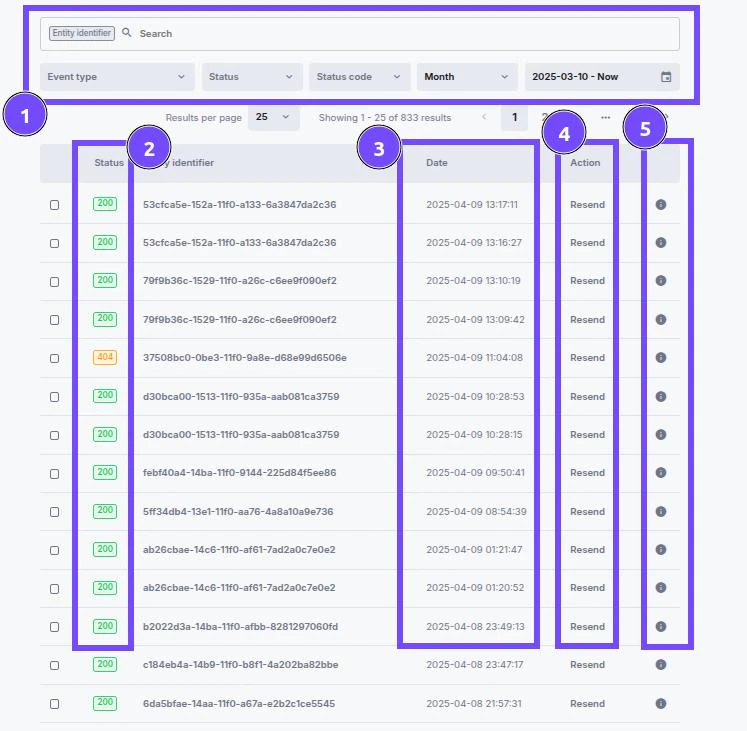
By going to Settings > Notifications > selecting Recently sent in the top right corner, you can search for specific notifications and see what was sent and what status was received from your server.- Search field - Use scanRef to search for specific notifications for verification.
- Response status - The response received from your server:
0- No Response: No communication; server unreachable.2xx- Success: Request successful, information returned.3xx- Redirection: Further action needed, request redirected.4xx- Client Errors: Your server could not handle the response.5xx- Server Errors: Request valid, there is a problem with the server.
- Date and time when the notification was sent.
- Resend - Attempt to resend the webhook.
- Details - Shows full information of what was sent in JSON format.